
Companies are organizations with multiple employees. Store business-level information that doesn’t change between projects or contacts.
In this guide, you’ll learn:
- When to create company records
- How to add companies
- Required and important fields
- Linking companies to people and opportunities
When to Create Company Records #
Create a company record when you’re working with a business that has multiple employees. This matters when different people handle different projects at the same organization.
Create companies for:
- Businesses with multiple contacts
- Organizations where you might work with different people on different projects
- B2B clients and prospects
How to Add a Company #
- Click CRM V2 in the left sidebar
- Click the Companies tab at the top
- Click + Add New in the top left corner
- Add the company name. The company record will be saved automatically.
- Click the name to open details and fill in additional information
Required and Important Fields #
Required #
Name – Company’s full name. Use “Brightwave Fitness” consistently, not “Brightwave” or “BW Fitness”
Important Optional Fields #
Emails – Company email addresses. Add multiple if needed. Click the + button to add more.
Phones – Company phone numbers. Click the + button to add more.
Domain – Company website. Example: brightwave.com
Industry – Select from dropdown. Examples: “Fitness Technology”, “Creative Agency”, “SaaS”
Source – Where you found them. Examples: “Referral”, “Website”, “LinkedIn”, “Cold Outreach”
Account Owner – Team member managing this company relationship
Additional Fields #
Country – Company location
ARR – Annual Recurring Revenue (if applicable)
Employees – Number of employees
ICP – Check this box if they match your Ideal Customer Profile
Linking Companies to People #
After creating a company, add the people who work there. You can do this two ways:
Method 1: From inside the company record
- Click the company name to open its detail view
- Scroll to the People section
- Click + icon
- Search and select existing people.
- They’re now linked to this company
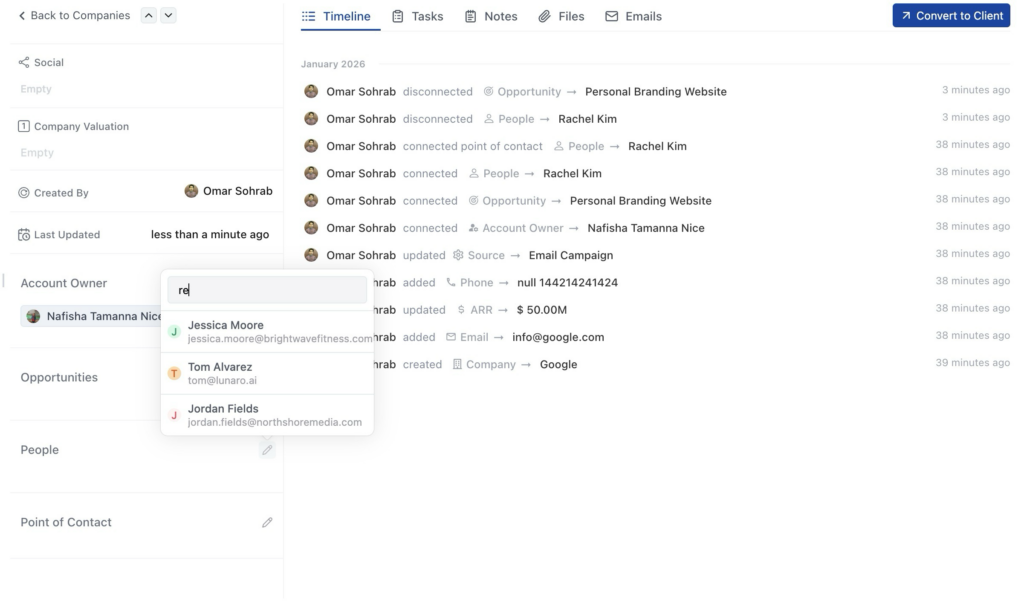
Method 2: From the People tab
- Go to People profile you want to add.
- Click pencil icon
- Search the company you just created and add.
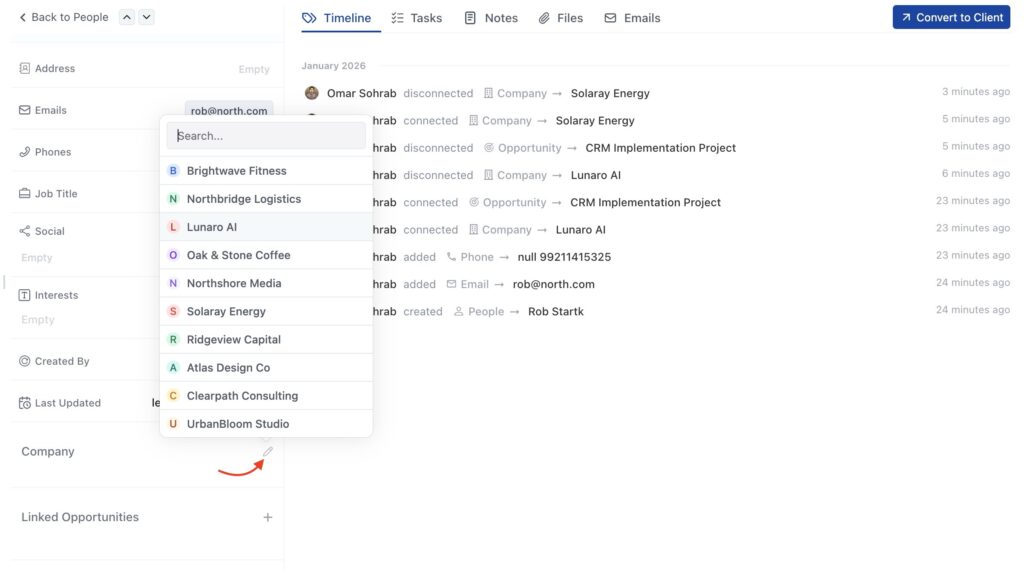
All people linked to a company appear in that company’s detail view under the People section.
Editing Company Information #
To update information later:
- Click on the company name in the Companies list
- Detail view opens on the right
- Click the pencil icon next to any field
- Make your changes
- Changes save automatically
FAQ #
Q: Can I add a company later after creating people?
Yes. Create the people first, then create the company. Go back to edit each person and link them to the company.
Q: Do I need to fill in all company fields?
No. Only the company name is required. Add other details as you learn them.
Q: Can I have multiple people at the same company?
Yes. Create each person separately and link them all to the same company, or link them from inside the company record.
Q: What if I don’t know the company’s industry or employee count?
Leave those fields blank. You can add them later when you have the information.
Q: Can one person work at two companies?
No. Each person can only link to one company. This covers most real-world scenarios.
Q: Should I create a company for a husband-and-wife business?
If they both handle different aspects of projects, create a company and link both as people. If only one person handles everything, use a people-only record.