
Reviewing, updating, and approving time entries across projects
Overview #
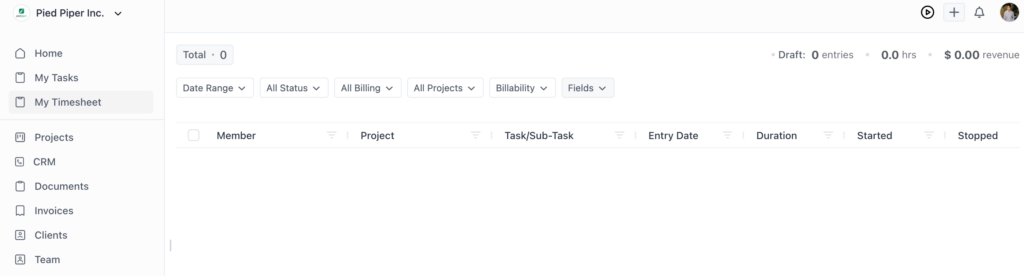
The Timesheet view in OneSuite gives you a consolidated overview of all time entries logged across every project. From here, you can review hours, update billing status, and approve entries before they are included in client invoices.
Accessing the Timesheet #
- Navigate to Timesheet from the main left-hand menu.
- The view displays all time entries across all projects in one place.
What You Can Do in the Timesheet View #
The Timesheet view supports the following actions: #
| Action | Description |
| View All Entries | See a consolidated list of all time entries logged across every project. |
| Update Availability | Change the availability status (Available / Not Available) for any entry. |
| Update Billing Status | Mark individual entries as Billable or Non-Billable. |
| Approve Hours | Change an entry’s status to Approved, making it eligible for invoicing. |
Approval Workflow #
Before time entries can be included in an invoice, they must meet all three of the following criteria: #
| # | Requirement | Details |
| 1 | Marked as Billable | The entry must be set to Billable (not Non-Billable) in the Timesheet view. |
| 2 | Status set to Approved | The entry’s approval status must be changed to Approved. |
| 3 | Not yet invoiced | The entry must not have already been added to a previous invoice. |
| Note: Only entries that are Billable, Approved, and not yet invoiced will appear when adding timesheet data to an invoice. |
Step-by-Step: Approving Time Entries #
- Navigate to the Timesheet from the main menu.
- Locate the time entry you want to review.
- Confirm or update the Billing Status — set to Billable if it should be invoiced.
- Change the entry status to Approved.
- Repeat for all entries that should be included in the next invoice.
Best Practices #
- Review timesheet entries regularly, ideally at the end of each week.
- Use the Notes field during time tracking to make approval reviews faster.
- Set billing status at the point of entry to reduce Timesheet review time.
- Only approve entries you have fully verified — approvals feed directly into invoices.
Once entries are approved, proceed to the Invoice generation workflow. Refer to the Invoice Generation guide for next steps.