Skip to content

OneSuite Logo

  • SolutionsExpand
    • Projects icon

      Projects

      Manage tasks smartly & deliver timely

      Lead Pipeline icon

      CRM

      Nurture leads and win more clients

      Invoice icon

      Invoice

      Create invoices in minutes & get paid

      Client Portal icon

      Client Portal

      Ensure transparency & gain trust

      Document Hub icon

      Document Hub

      Create & sign documents easily

      Team

      Manage tasks smartly & deliver timely

  • Use Cases
  • Pricing
  • ResourcesExpand
    • Documentation

      Support

      Roadmap

      Changelog

      FAQ

      Blog

      API Doc

  • CompanyExpand
    • About
Try for free

Help Center

  • Documentation
  • Public Roadmap
  • Book a demo
  • Get Support
OneSuite Logo
intro to onesuite

OneSuite 101

6
  • Introduction
  • Understanding OneSuite’s Structure
  • How Solutions Work Together
  • Navigating OneSuite
  • All OneSuite Capabilities
  • OneSuite Glossary
quick start guide

Quick Start Guide

7
  • Setting Up Your Business
  • Adding Your Payment Methods
  • Inviting Team Members
  • Adding Your First Leads
  • Adding Your First Client
  • Giving Your Client Portal Access
  • Sending Your First Proposal

CRM

6
  • CRM Overview
  • Adding People
  • Adding Companies
  • Creating Opportunity
  • How Opportunities, Companies, and People Work Together
  • Understanding Pipeline Stages
client

Client Management in OneSuite

7
  • Client Portal Customization 
  • Understanding the Clients Solution
  • Adding Clients
  • Client Profiles
  • Imports, Exports, and Search
  • The OneSuite Client Portal
  • Video Documentation : Client Management
pm

Manage your Projects Effortlessly

7
  • Subtask Behavior & Movement Management
  • Laying the Groundwork: Project Creation in OneSuite
  • Managing Project Boards in OneSuite
  • Adding Tasks to Boards in OneSuite
  • Lifesaver:Templates in OneSuite
  • Custom Categories, Tags, and Labels in Projects
  • Video Documentation : Project Management

Documents

5
  • Overview
  • Creating a Document from Scratch
  • Uploading a PDF Document
  • Sending Documents to Parties to Sign
  • Signing a Document
team

OneSuite's Team Management

4
  • Inviting Collaborators in OneSuite
  • Creating Personalized Departments in OneSuite
  • Managing Team Members in OneSuite
  • Video Documentation : Team Collaboration
Invoices & Payments

Invoices & Payments

7
  • Access & Navigation
  • Invoice Settings & Customization
  • Create One-time Invoices
  • Creating Recurring Invoices
  • How to set taxes on your invoices
  • How to Add Direct Bank Transfer Instructions to Your Invoices
  • How to Customize Invoice Email Messages

Time Tracking & Timesheets

4
  • Invoice Generation from Billable Hours
  • Timesheet Management & Approval
  • Time Tracking in OneSuite
  • Time Tracking & Timesheets 

Email Inbox in OneSuite

5
  • Email Inbox 
  • How to Integrate Microsoft Outlook in OneSuite 
  • How to Use Email Templates in OneSuite 
  • How to Integrate Gmail in OneSuite 
  • How to Send and Receive Email in OneSuite 
View Categories
  • Home
  • Docs
  • Time Tracking & Timesheets
  • Invoice Generation from Billable Hours

Invoice Generation from Billable Hours

Creating client invoices automatically from approved timesheet entries

Overview #

Once billable time entries have been approved in the Timesheet view, OneSuite allows you to generate client invoices automatically from those entries. This eliminates manual data entry and ensures invoices accurately reflect the hours worked.

Prerequisites #

Before generating an invoice, ensure all time entries you want to bill meet these criteria:

  • Marked as Billable in the Timesheet view.
  • Status set to Approved.
  • Not already included in a previous invoice.
Note: Entries that do not meet all three criteria will not appear when importing from Timesheet.

Creating an Invoice from Timesheet Data #

Follow these steps to generate an invoice from approved billable hours:

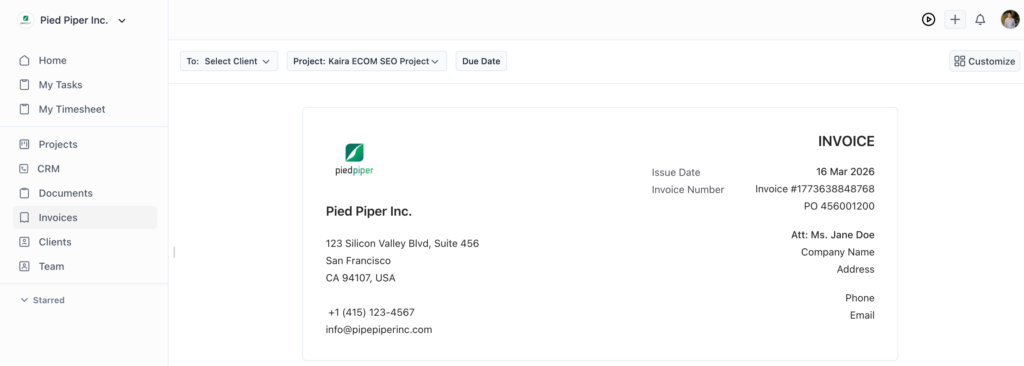
  • Go to Invoices from the main menu and click Create New.
  • Select One-Time Invoice as the invoice type.
  • Select the Project you want to invoice for.
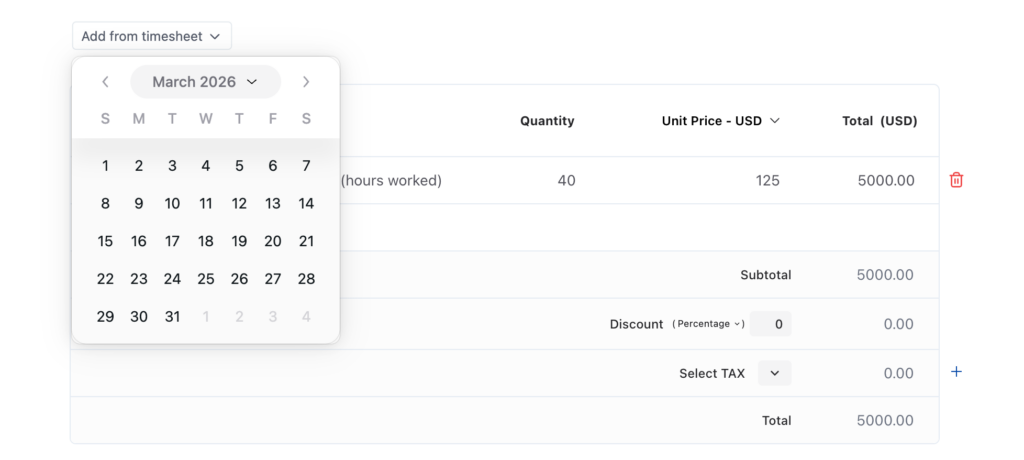
  • Below the item description area, click Add from Timesheet.
  • Select the date range covering the time entries you want to include.
  • OneSuite will automatically pull in all eligible time entries within that range.
Creating an Invoice from Timesheet Data
Select the date range
Note: Eligible entries are those that are Billable, Approved, and have not previously been invoiced.

Reviewing Invoice Line Items #

After importing from Timesheet, review the invoice carefully before sending:

Review StepDetails
Task-level line itemsEach task is displayed as a separate line item in the invoice.
Expand line itemsClick any line item to expand and view the individual time tracking rows that make it up.
Update hourly ratesIf a placeholder rate (e.g., $1) was used during tracking, update it here to the correct billing amount.
Verify hoursConfirm that the hours and descriptions accurately reflect the work performed before finalising.
Note: Time entries are grouped per task. The expanded view lets you verify all details before sending the invoice to your client.

Finalising and Sending the Invoice #

  • Confirm all line items, hours, and rates are correct.
  • Update any placeholder hourly rates to reflect actual billing amounts.
  • Add any additional notes or payment terms as required.
  • Send the invoice to your client directly from OneSuite.

What Happens After Invoicing #

Once time entries are added to an invoice:

  • They are marked as invoiced and will no longer appear in future Timesheet imports.
  • They remain visible in the Timesheet view for historical reference.
  • The invoice appears in the Invoices section with its associated project and line items.

End-to-End Workflow Summary #

StepAction
Step 1Enable the Timesheet module from Settings > Customise Modules.
Step 2Start a timer from the app header or from a project task.
Step 3Log time, set hourly rates, and add notes.
Step 4Review entries in the Timesheet view and mark as Billable.
Step 5Approve eligible entries in the Timesheet view.
Step 6Go to Invoices > Create New > Add from Timesheet.
Step 7Select a date range, review line items, update rates, and send.

For questions or feedback, please contact the OneSuite support team.

Updated on March 16, 2026

Did this article answer your question?

  • Happy
  • Sad
Time Tracking & Timesheets Timesheet Management & Approval

Leave a Reply Cancel reply

Your email address will not be published. Required fields are marked *

This site uses Akismet to reduce spam. Learn how your comment data is processed.

Table of Contents
  • Overview
  • Prerequisites
  • Creating an Invoice from Timesheet Data
  • Reviewing Invoice Line Items
  • Finalising and Sending the Invoice
  • What Happens After Invoicing
  • End-to-End Workflow Summary
OneSuite Logo

Streamline your agency's workflow while you focus on growth—manage clients, projects, teams, proposals, contracts, and invoices effortlessly with OneSuite!

product hunt

Follow Us On

  • Facebook
  • X
  • Instagram
  • LinkedIn

Join Our Community

  • Facebook
  • WhatsApp

Features

Projects

Lead Pipeline

Documents

Invoices

Client Portal

Teams

Resources

Contact

Support

Docs

Blog

Branding

Become an affiliate

Agency Partner Program

Public roadmap

Book a demo

Compare

OneSuite vs. Kitchen Co

OneSuite vs. Moxie

OneSuite vs. Flowlu

OneSuite vs. Plutio

OneSuite vs. Bonsai

OneSuite vs. ClientManager

  • Terms of use
  • Privacy policy
  • Cookie policy
  • Refund policy
  • Acceptable use policy
  • Data processing terms
  • Solutions
    • Projects icon

      Projects

      Manage tasks smartly & deliver timely

      Lead Pipeline icon

      CRM

      Nurture leads and win more clients

      Invoice icon

      Invoice

      Create invoices in minutes & get paid

      Client Portal icon

      Client Portal

      Ensure transparency & gain trust

      Document Hub icon

      Document Hub

      Create & sign documents easily

      Team

      Manage tasks smartly & deliver timely

  • Use Cases
  • Pricing
  • Resources
    • Documentation

      Support

      Roadmap

      Changelog

      FAQ

      Blog

      API Doc

  • Company
    • About
  • Documentation
  • Public Roadmap
  • Book a demo
  • Get Support
Try OneSuite   →