
Connect your Outlook account to send and receive emails and optionally import contacts into the CRM
Overview #
OneSuite supports Microsoft Outlook integration, allowing you to send and receive emails from within the platform. You can also choose to import your existing Outlook contacts directly into the OneSuite CRM during setup.
Connecting Your Outlook Account #
To integrate Microsoft Outlook with OneSuite:
- Go to Integrations from the main menu.
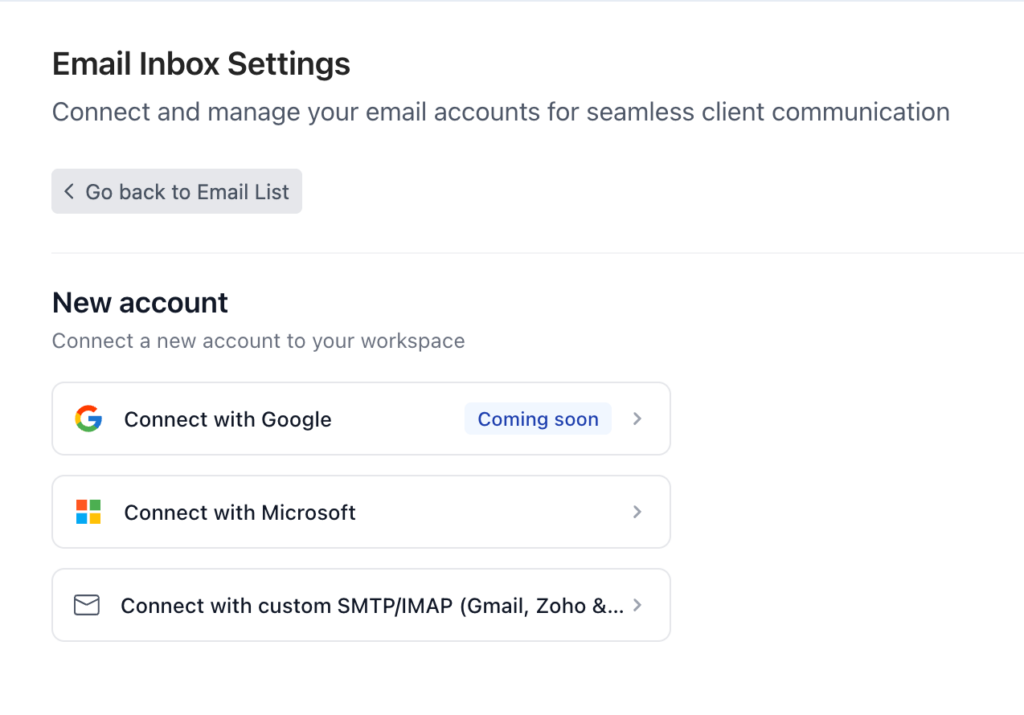
- Locate the Email Inbox and click on it.
- Select Microsoft Outlook, then click Connect with Microsoft.
- You will be redirected to Microsoft’s authorisation page. Sign in with your Outlook account and grant the requested permissions.
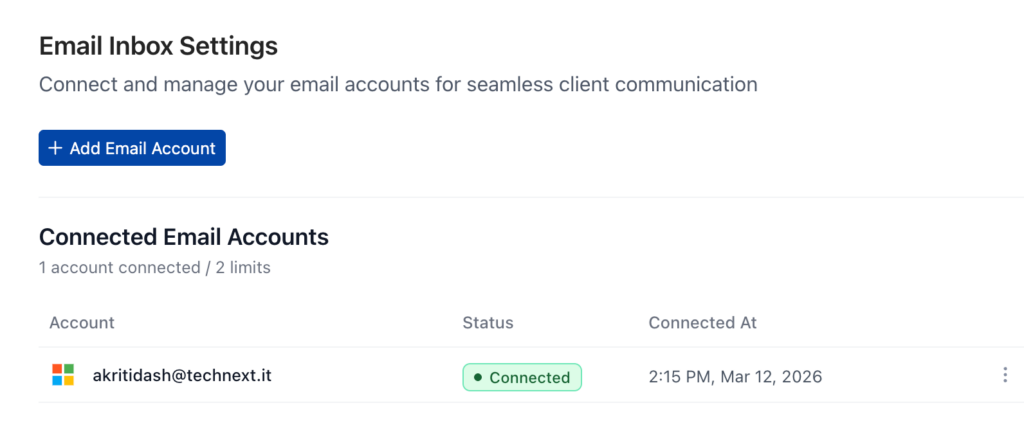
- Once authorised, your Outlook account will be connected to OneSuite.
Importing Contacts into the CRM #
During the connection process, you will see an option to import your Outlook contacts into OneSuite’s CRM.
- Enable the checkbox labeled Import All Contacts in Your CRM if you want to import contacts.
- When enabled, OneSuite will import up to your 3,000 most recent email contacts into the People and Companies sections of the CRM.
- If a contact belongs to a company, OneSuite will automatically create a Company record and associate the contact with it.
Note: Importing contacts is optional. You can connect Outlook without importing contacts by leaving the checkbox unchecked.
Summary #
Once connected, your Outlook inbox is accessible from within OneSuite. You can send and receive emails from client and contact records, with the option to have your contact list automatically populated in the CRM.
If you have feedback or suggestions for improving this feature, please reach out to the OneSuite support team.